




Cmd/Ctrl + K) is your gateway to rapid navigation and action execution in the MCP Inspector. Search and access tools, servers, saved requests, and more with a few keystrokes.
Opening the Command Palette
PressCmd/Ctrl + K (or Ctrl + K on Windows/Linux) from anywhere in the inspector.
The command palette works even when input fields are focused, making it always accessible.
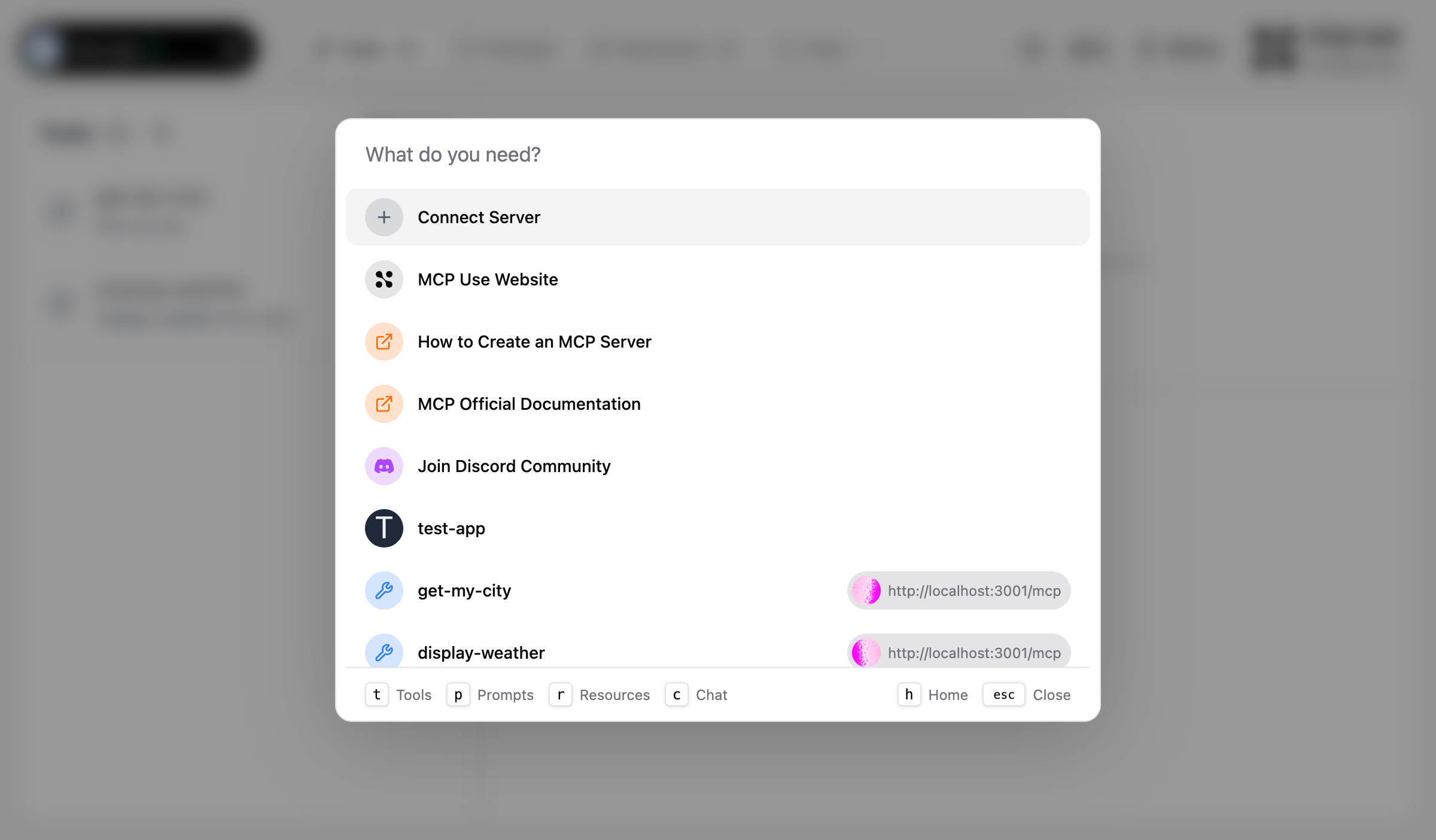
Search Functionality
The command palette provides fuzzy search across all available items:- Tool names and descriptions
- Prompt names and descriptions
- Resource names and URIs
- Saved request names
- Server names
- Global commands
- Beginning of words
- Partial matches
- Descriptions and metadata
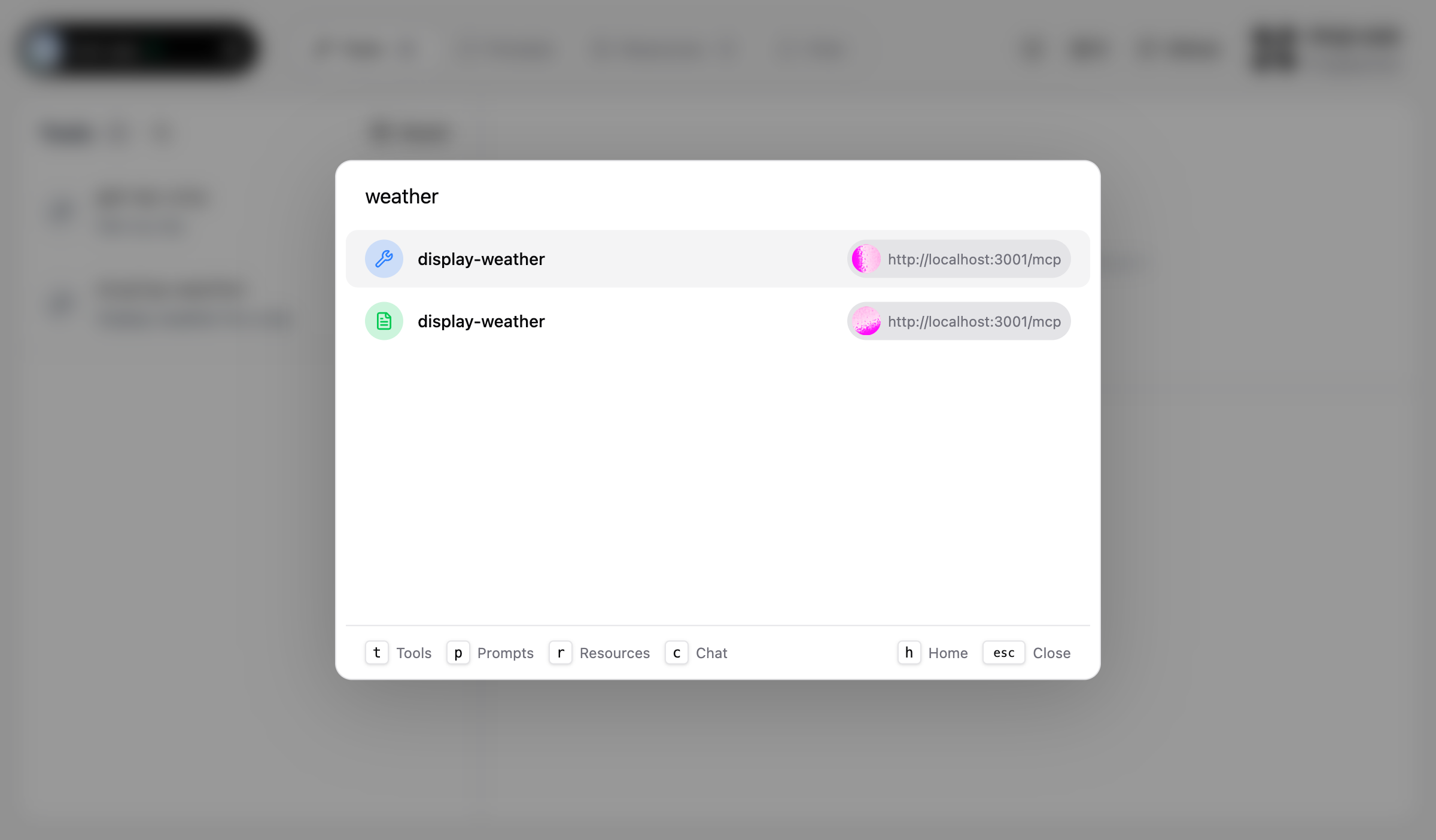
Available Actions
Connect to Server
Action: “Connect Server” Navigate to the dashboard to add a new MCP server connection. Use cases:- Quick access to connection form
- Adding new servers
- Starting new debugging sessions
Search and Execute Tools
Action: Select any tool from search results Navigate directly to a tool and execute it. Workflow:- Press
Cmd/Ctrl + K - Type tool name
- Select tool from results
- Inspector navigates to Tools tab with tool selected
- Enter arguments and execute
Navigate to Saved Requests
Action: Select a saved request Load a saved request with its arguments pre-filled. Workflow:- Press
Cmd/Ctrl + K - Type saved request name
- Select from “Saved Requests” category
- Inspector navigates to Tools tab with request loaded
Quick Server Switching
Action: Select a server from “Connected Servers” Switch to a different server’s detail view. Workflow:- Press
Cmd/Ctrl + K - Type server name or URL
- Select server from results
- Inspector navigates to that server’s view
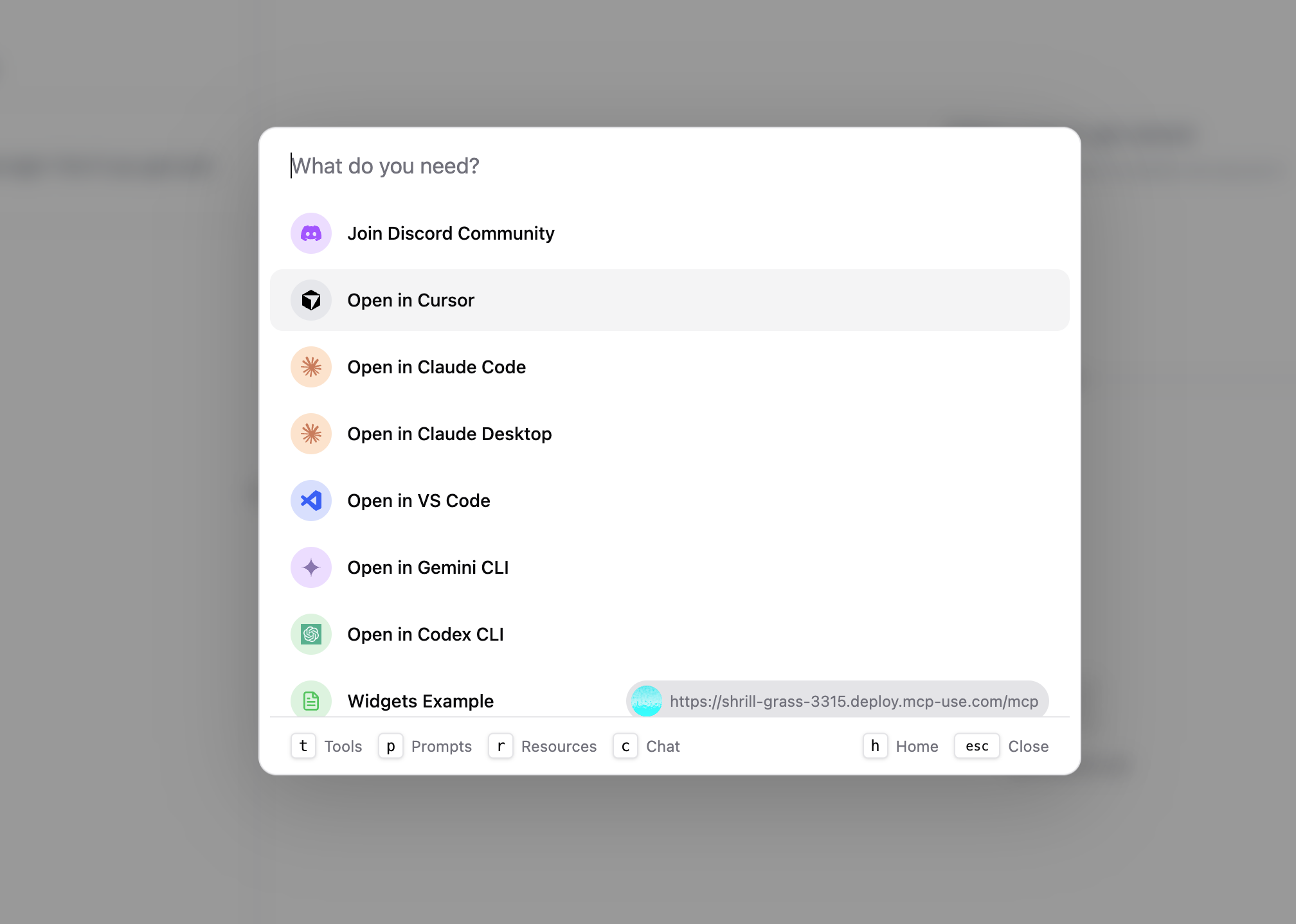
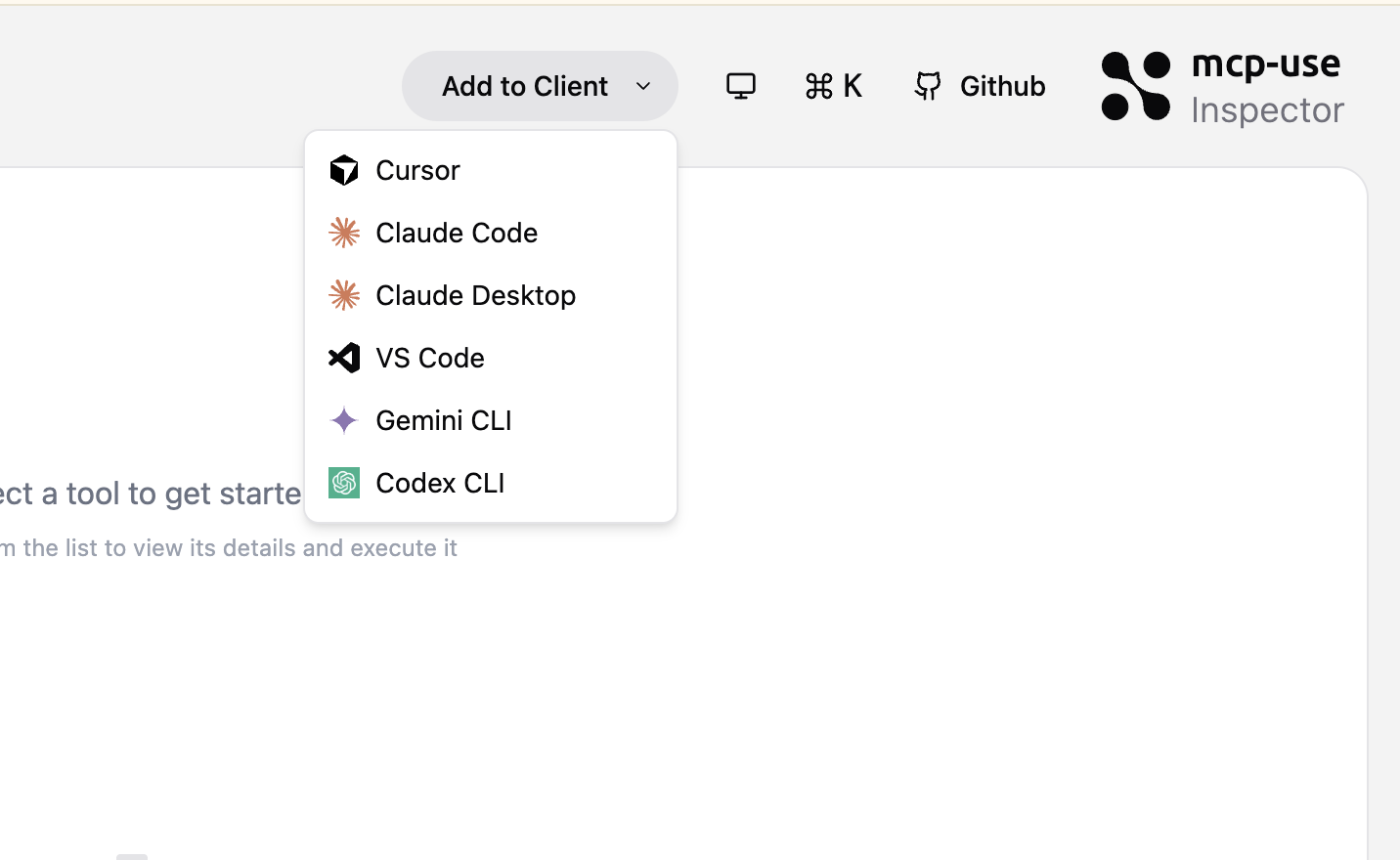
Add to Client
Actions: “Open in Cursor”, “Open in Claude Code”, “Open in Claude Desktop”, “Open in VS Code”, “Open in Gemini CLI”, “Open in Codex CLI” Quickly add the current MCP server to various AI clients and code editors. Each action provides the appropriate installation method:- Cursor & VS Code: Deep links that open the client’s MCP installation dialog
- Claude Desktop: Downloads a
.mcpbconfiguration file - Claude Code, Gemini CLI, Codex CLI: Copies CLI commands or configuration to clipboard
- Press
Cmd/Ctrl + K - Type “Open in” or the client name (e.g., “Cursor”, “VS Code”)
- Select the desired client
- Follow the installation instructions (deep link opens automatically, or command/config is copied to clipboard)
Documentation Links
Access documentation and resources:- “MCP Use Website”: Opens mcp-use.com
- “How to Create an MCP Server”: Opens documentation
- “MCP Official Documentation”: Opens Model Context Protocol docs
Community Links
- “Join Discord Community”: Opens Discord server
Categories
Results are organized into categories for easy navigation:Navigation
Global navigation actions like “Connect Server”.Open in Client
Quick actions to add the current MCP server to various AI clients and code editors. Each client has its own icon for easy identification.Connected Servers
All currently connected MCP servers with their status. Display format:- Server name
- Connection status indicator
- Server URL
Tools
All available tools from connected servers, grouped by server. Display format:- Tool name
- Tool description
- Server name badge
Prompts
All available prompts from connected servers, grouped by server. Display format:- Prompt name
- Prompt description
- Server name badge
Resources
All available resources from connected servers, grouped by server. Display format:- Resource name
- Resource description
- Server name badge
Saved Requests
All saved tool execution requests. Display format:- Request name
- Associated tool name
- Server name badge
Documentation
Links to external documentation and resources.Community
Links to community resources like Discord.Keyboard Navigation
Navigate the command palette with your keyboard:- Arrow Keys: Move up/down through results
- Enter: Select highlighted item
- Esc: Close command palette
- Tab: (Future: Navigate between categories)
Visual Indicators
The command palette uses icons to identify item types:- 🔧 Wrench: Tools
- 💬 Message: Prompts
- 📄 File: Resources
- 🕐 Clock: Saved requests
- ➕ Plus: Navigation actions
- 🔗 Link: External links
- 💬 Discord: Community links
- 🖥️ Server: Server connections
- Client Icons: Each “Open in Client” command displays the client’s icon (Cursor, Claude, VS Code, Gemini, Codex)
Tips and Tricks
Quick Tool Execution
- Press
Cmd/Ctrl + K - Type tool name (e.g., “create issue”)
- Press
Enter - Tool is selected, ready for execution
Finding Saved Requests
- Press
Cmd/Ctrl + K - Type part of request name
- Look in “Saved Requests” category
- Select to load
Server Switching
- Press
Cmd/Ctrl + K - Type server name or URL
- Select from “Connected Servers”
- Instantly switch context
Fuzzy Search
The search is forgiving - you don’t need exact matches:- “lin iss” matches “Linear Create Issue”
- “get” matches “get_user”, “get_project”, etc.
- Partial descriptions work too
Category Filtering
Results are automatically grouped by category. Look for:- Server-specific groupings (e.g., “Tools - Linear”)
- Global categories (e.g., “Navigation”, “Documentation”)
Advanced Usage
Multi-Server Search
When multiple servers are connected, search results show which server each item belongs to:- Tools are grouped by server
- Server name badges appear on items
- Filter by server name in search
Quick Access Patterns
Common workflows:- Tool Testing:
Cmd/Ctrl + K→ type tool →Enter→ execute - Saved Request:
Cmd/Ctrl + K→ type request →Enter→ execute - Server Switch:
Cmd/Ctrl + K→ type server →Enter - New Connection:
Cmd/Ctrl + K→ “Connect Server” →Enter
Related Documentation
- Keyboard Shortcuts - All available shortcuts
- Overview - Saved requests and other features
- Getting Started - Basic inspector usage